
Netsoins Teranga is the computerized user file software (DUI) used by the majority of EHPADs and medical-social structures in France. Access is entirely via a web browser, with no local installation required on the workstation or tablet. Understanding how the login portal works, the technical prerequisites, and common errors can save time on a daily basis.
Portal hsm.netsoins.com: the real entry point for teams
Commercial presentations often mention “the NETSoins software” without specifying the exact address. In practice, the portal used by field teams is hsm.netsoins.com, also referred to as .netsoins. This is the URL that must be entered in the browser’s address bar to access the Teranga login screen.
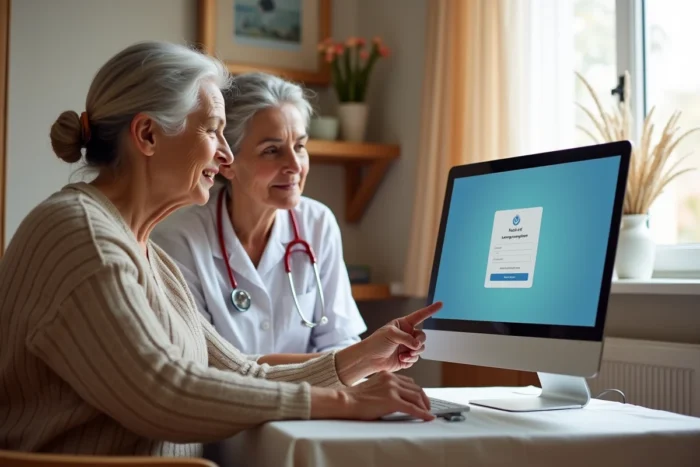
The interface displays the Orisha Socialcare Teranga logo, an identifier field, and a password field. No prior download is required. The portal works from any workstation with internet access and a recent browser (Chrome, Firefox, Edge).
To connect to Netsoins Teranga smoothly, the first step is to ensure that the entered URL is the one provided by the establishment, as some structures have a personalized address linked to the same portal.
Browser and technical prerequisites for a seamless Netsoins connection
The majority of connection issues stem from the browser used, not the software itself. Since NETSoins is a 100% web application, the browser’s compatibility directly affects the smoothness of access.
Compatible browsers
- Google Chrome (recent version): the browser recommended by Teranga Software, which poses the least display and performance issues
- Mozilla Firefox: compatible, provided it is kept up to date to avoid conflicts with security certificates
- Microsoft Edge (based on Chromium): works correctly on recent Windows workstations
- Internet Explorer: outdated and a frequent source of blockages, to be absolutely avoided on any remaining equipped workstations
Checks before the first connection
The browser’s cache and cookies must be enabled. A pop-up blocker that is too restrictive may prevent the display of certain modules after authentication. On shared workstations in EHPADs, the browser may be configured to delete cookies upon closing, which forces a re-entry of credentials for each session.
The connection requires no VPN or third-party software, unless the establishment has implemented a specific firewall. In this case, the network administrator must allow the netsoins.com domain in the filtering rules.
Netsoins credentials: assignment, entry, and forgotten password
Each professional receives a personal identifier assigned by the establishment’s administrator. This identifier/password pair is strictly individual. Sharing credentials among colleagues compromises the traceability of care and violates GDPR compliance requirements.
First connection
During the first connection, the system usually prompts to change the temporary password. The new password must comply with the complexity rules defined by the establishment (minimum length, special characters, uppercase letters).
Forgotten password
The reset procedure goes through the NETSoins administrator of the structure, not through a standard “forgot password” link. In practice, this means contacting the IT referent or the health manager authorized to manage user accounts in the Teranga back office.
This centralization of access management enhances security but may slow down the resumption of activity if the referent is unavailable. Anticipating by noting the referent’s contact in an accessible place remains the best precaution.
Automatic disconnection and session management in EHPADs
A parameter often unknown to new users: NETSoins automatically disconnects after thirty minutes of inactivity. This security measure protects health data on shared workstations, but it has a direct consequence on daily work.
Caregivers who enter a long transmission or are interrupted by an emergency sometimes lose their ongoing entry. To limit this risk, two reflexes help:
- Regularly validate intermediate entries rather than writing a long text before clicking “Save”
- Keep the NETSoins tab active in the browser, as inactivity is measured by the absence of interaction with the page
- Avoid opening multiple NETSoins tabs simultaneously, which can cause session conflicts and premature disconnection
On a tablet, the screen going to sleep also triggers the inactivity timer. Setting the tablet’s sleep delay beyond the disconnection threshold does not resolve the issue, as it is the NETSoins server that manages the timeout, not the device.
Data security and certified health hosting
The data entered in NETSoins is hosted on servers compliant with the HDS (Health Data Hosting) certification. This standard guarantees a level of protection suitable for the medical information of residents.
Each action performed in the software (consulting a file, modifying a prescription, writing a transmission) is tracked with the user’s identifier, date, and time. This complete traceability meets GDPR compliance requirements and facilitates internal audits.
Secure access also goes through Pro Santé Connect, the national identification system for health professionals. The general terms of use and GDPR policy can be consulted directly from the hsm.netsoins.com login page, via the links at the bottom of the page.
Connecting to Netsoins Teranga relies on simple mechanisms (up-to-date browser, personal credentials, correct URL) but the security constraints specific to the medical-social sector add steps that consumer software does not impose. Mastering the session timeout functionality and knowing the referent authorized to reset a password are two points that alone can prevent the majority of blockages encountered by teams in the establishment.