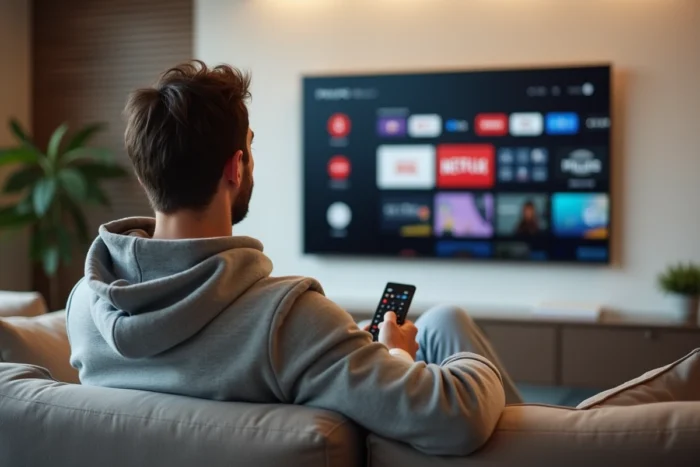
Recent Philips TVs run on Android TV or Google TV, giving them access to the Play Store and an application ecosystem similar to that of a smartphone. To fully utilize IPTV on a Philips TV, one must understand the specific constraints of this embedded operating system, from hardware decoding to network management.
Hardware Decoding and Video Codec on Philips Android TVs
The choice of an IPTV player on a Philips TV is not just about the interface. The key technical point is the support for hardware decoding by the chipset integrated into the television. Without hardware decoding, the stream is processed by the main processor, causing stuttering and overheating on high-definition content.
Philips TVs equipped with recent MediaTek SoCs natively support H.264 and H.265 (HEVC). VP9, used by some streams, is also supported on most models released in the past two or three years. We recommend checking in the IPTV player settings that decoding is set to “Hardware” or “HW+” rather than “Software”.
TiviMate and IPTV Smarters Pro expose this setting in their advanced options. GSE Smart IPTV also offers it, but the option is less visible. If your 4K stream is stuttering, it is almost always due to software decoding being enabled by default. For more detailed configuration, refer to the dedicated guide on the IPTV application on a Philips TV.
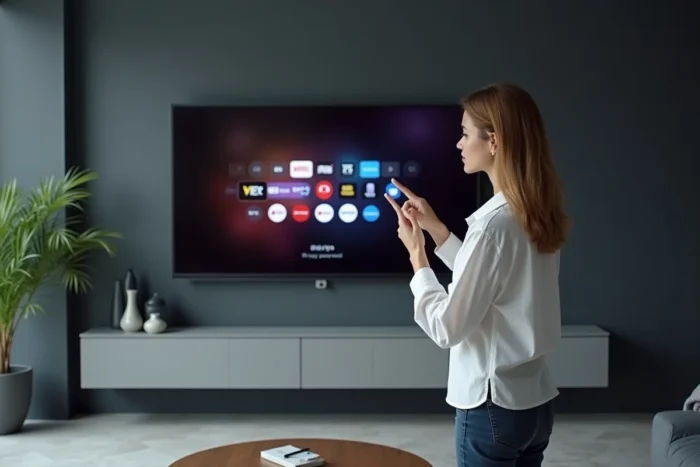
Compatible IPTV Players for Philips: TiviMate, Smarters Pro, and GSE Smart IPTV
Three applications dominate IPTV usage on Philips running Android TV or Google TV: TiviMate, IPTV Smarters Pro, and GSE Smart IPTV. Each has a distinct positioning.
- TiviMate offers the most advanced EPG (electronic program guide) management, with a grid display comparable to that of a satellite decoder. The premium version unlocks recording and multi-playlist favorites.
- IPTV Smarters Pro stands out for its broad compatibility with M3U playlist formats and Xtream Codes portals. Its interface adopts a familiar “operator” design.
- GSE Smart IPTV remains a decent free option, with a built-in player that handles most codecs without manual configuration. The interface is less polished, but it gets the job done for basic use.
These three applications are available on the Play Store. On Philips models running the VIDA platform (shared with Hisense), the Play Store is not always directly accessible. In this case, installation is done through the Downloader app, which can be downloaded from the native store, allowing you to sideload the desired IPTV player APK.
Sideloading on Philips VIDA: Enabling Unknown Sources
To install an APK via Downloader, you must first allow installation from unknown sources. The path varies depending on the firmware, but it is generally found in Settings > Security or Settings > Apps > Special Access. Without this activation, the system silently blocks the installation.
We notice that some firmware updates reset this permission. If an IPTV application suddenly refuses to update, check this setting as a priority.
Home Network and IPTV on Philips TV: Ethernet vs. Wi-Fi
The quality of the IPTV experience depends as much on the network as on the application. A stable Full HD stream requires a constant speed of at least 10 to 20 Mbps, and 4K requires between 25 and 50 Mbps according to reference guides published in 2025-2026.
The built-in Wi-Fi on Philips TVs works, but it is sensitive to interference and distance from the router. For daily IPTV use, connecting via Ethernet through the TV’s rear RJ45 port eliminates almost all buffering issues.
Configuring DNS to Reduce Latency
A detail often overlooked: the default DNS server assigned by the internet box can slow down the resolution of IPTV stream URLs. Manually switching to a fast public DNS (in Settings > Network > IP Configuration > Static) significantly reduces the channel zapping time. Changing the DNS does not affect the speed but reduces the stream catch-up delay.
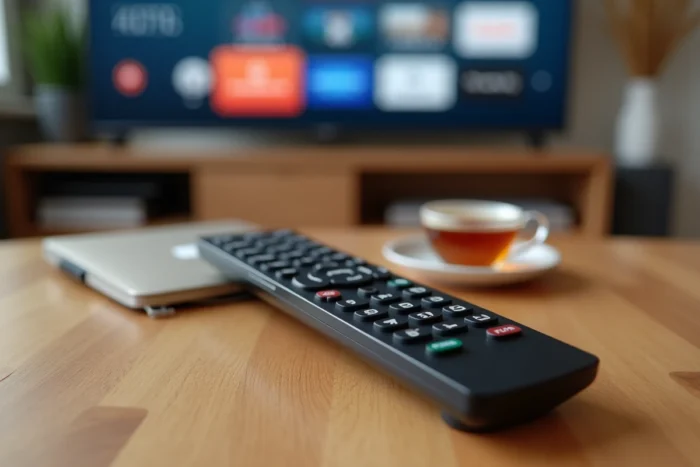
Managing EPG and Favorites on a Philips IPTV Playlist
Loading an M3U playlist on an IPTV player is not enough for comfortable daily use. The EPG transforms a raw list of channels into a true interactive TV guide. TiviMate and Smarters Pro allow you to associate a separate XMLTV URL from the main playlist, providing access to programs over several days.
Automatic EPG updates consume resources. On a Philips with a modest processor, we recommend limiting the refresh frequency to once a day, ideally scheduled at night. An hourly refresh, offered by default in some players, slows down the interface without providing real benefits.
Organizing Favorites by Category
IPTV playlists often contain several hundred channels. Without organization, zapping becomes cumbersome. TiviMate allows you to create custom favorite groups (sports, news, movies) independent of the categories provided by the original playlist. IPTV Smarters Pro offers a similar feature, but limited to a single sorting level.
This organization by favorites is even more useful on a Philips TV since the standard remote does not have direct numeric shortcuts to channels, unlike a traditional decoder.
Hardware Alternative: Fire TV Stick or Android Box on HDMI Port
If your Philips is a few years old and runs on outdated firmware without access to the Play Store, connecting a Fire TV Stick or an Android box to the HDMI port remains the most reliable solution. The stick supports the same applications (TiviMate, Smarters Pro) with more recent hardware and regular updates.
This approach bypasses the limitations of the native Philips store and offers a dedicated processor for streaming, without taxing that of the TV. The HDMI input switch is done via the Philips remote, maintaining acceptable ergonomics.
IPTV on Philips TVs works natively on recent models running Android TV or Google TV, provided you choose the right player and take care of the network configuration. On older models or those running VIDA, sideloading or an external HDMI stick resolves the issue without compromising playback quality.