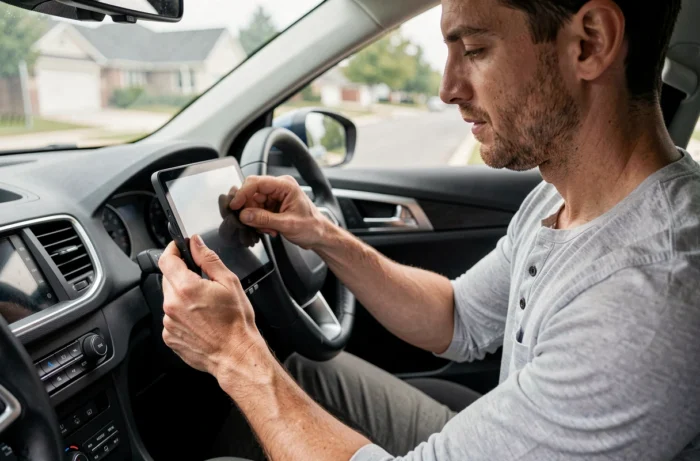
CarPlay is Apple’s embedded interface that projects certain functions of an iPhone (navigation, music, calls, messages) onto a vehicle’s screen. By design, CarPlay only works with an iPhone connected to a compatible receiver, typically integrated into the factory radio or a replacement radio. Trying to run this interface on an Android tablet involves bypassing several software locks, raising questions about stability and everyday relevance.
CarPlay Protocol and Android Compatibility: What the Hardware Really Allows
CarPlay relies on a proprietary Apple protocol. The iPhone sends an encrypted video and audio stream to a certified receiver, which displays the interface and sends back touch interactions. An Android tablet is not a certified receiver: it does not natively have the drivers or firmware needed to communicate with an iPhone via this protocol.
To circumvent this limitation, third-party applications like Zlink or AutoKit intercept the CarPlay stream using a USB dongle connected to the tablet. This dongle acts as a hardware bridge: it presents itself as a CarPlay receiver to the iPhone, then retransmits the video stream to the application installed on Android.
Therefore, the process requires three elements that work together: the dongle, the receiving application, and a tablet whose USB port supports host mode (USB OTG). If any of these links has an issue, the display simply won’t start.
Before attempting this manipulation, the most reliable approach remains to consult a detailed guide to install CarPlay on an Android tablet for cars to verify the exact compatibility of the targeted hardware.
Wireless CarPlay Adapter or Dedicated Screen: Often More Stable Alternatives
The question rarely posed in online tutorials: why would you want to turn an Android tablet into a CarPlay receiver when other solutions exist with less technical friction?
Wireless CarPlay Adapters for Existing Radios
If the vehicle already has a wired CarPlay-compatible radio, a wireless adapter (like Carlinkit or AAWireless for Android Auto) converts the USB connection into a Wi-Fi link. The iPhone connects automatically when the vehicle starts. The cost remains moderate, and the installation is limited to plugging a box into the radio’s USB port.
Portable Screens Compatible with CarPlay
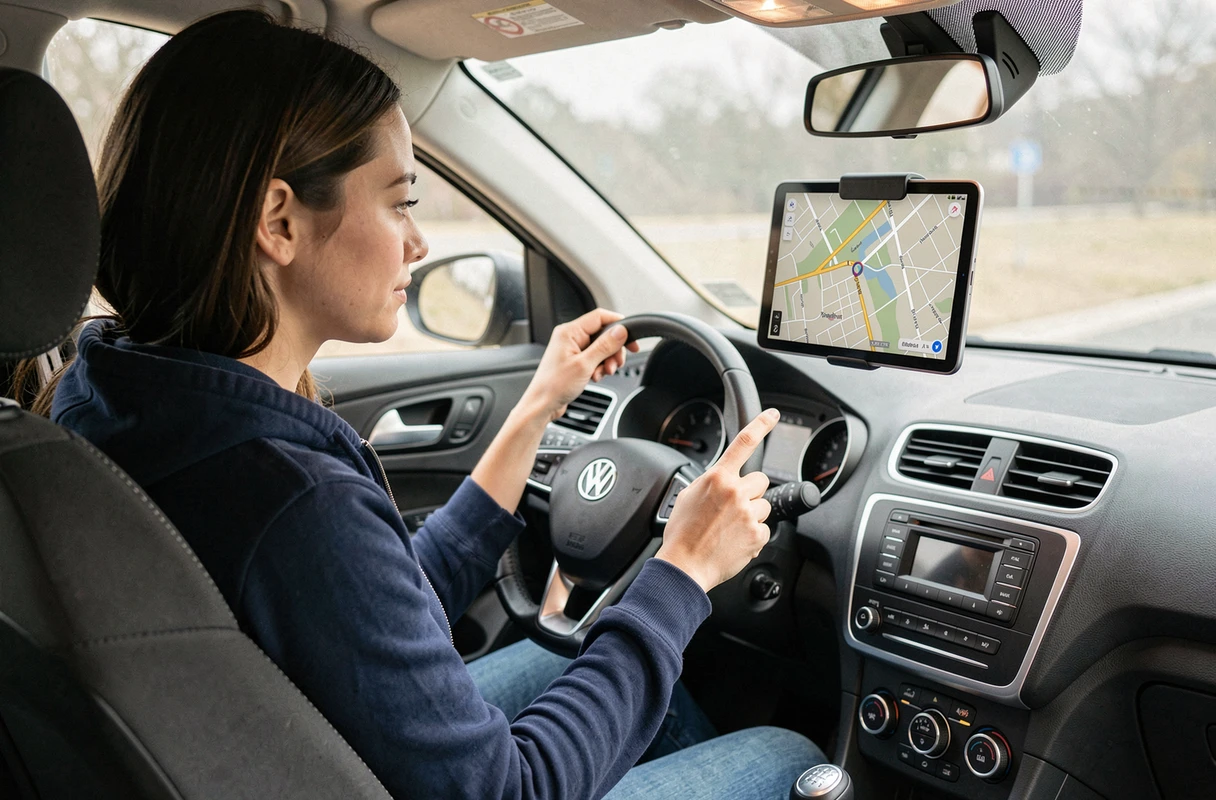
Portable screens ranging from seven to ten inches, sold as car accessories, directly integrate the certified CarPlay receiver. They attach to the dashboard and plug into the cigarette lighter. Apple certification ensures that the video stream displays without abnormal latency and that iOS updates do not break compatibility overnight.
These two options avoid the recurring problems of the Android tablet solution:
- No dependence on an unofficial third-party app that may disappear from the Play Store or become incompatible after an update
- No USB dongle to power separately, with the risk of disconnection while driving on rough roads
- No touch latency related to the double transcoding of the video stream (iPhone to dongle, dongle to Android application)
Concrete Steps to Set Up CarPlay on an Android Tablet
For those who still wish to attempt the installation, here is the technical logic to follow. The outcome will heavily depend on the tablet model and the version of Android.
Required Hardware
- An Android tablet compatible with USB OTG, running Android 10 or later, with at least one USB-C port
- A CarPlay USB dongle (Carlinkit CPC200, AutoKit, or equivalent) that includes the CarPlay receiving firmware
- A Lightning to USB cable to connect the iPhone to the dongle, or a Wi-Fi connection if the dongle supports wireless
- The application associated with the dongle (Zlink, AutoKit, or the one recommended by the manufacturer), installed via APK or Play Store
Configuration Procedure
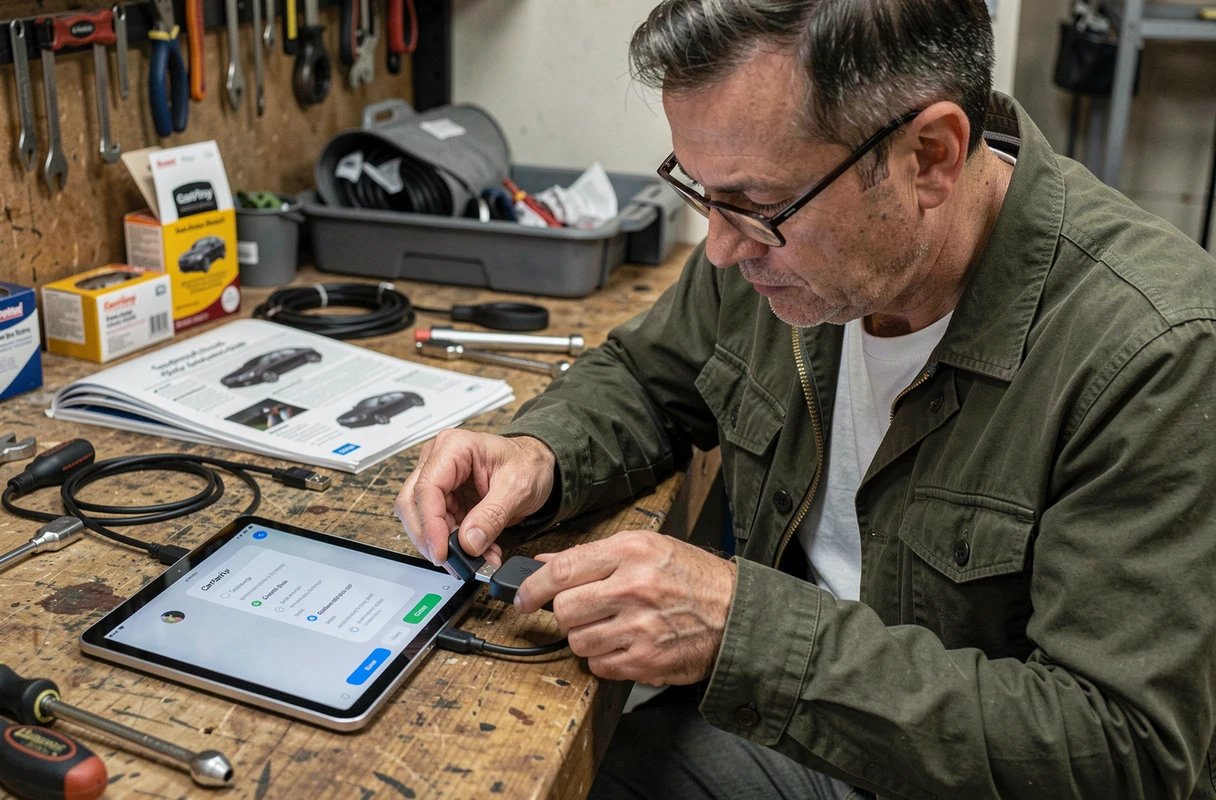
Connect the dongle to the tablet’s USB-C port via an OTG adapter if necessary. Launch the receiving application on the tablet. Then connect the iPhone to the dongle, either via Lightning cable or by activating Bluetooth and Wi-Fi for a wireless pairing.
The iPhone must have Siri enabled in the settings for CarPlay to work. If the connection is successful, the CarPlay interface will appear in the Android application. The tablet then becomes a remote screen that replicates the CarPlay environment: Maps, Music, Phone, Messages, and compatible third-party applications.
Technical Limitations to Know Before Mounting the Tablet on the Dashboard
The experience obtained through this method remains below that of a native CarPlay radio on several concrete points.
The touch latency is the most common issue. The video stream passes through the dongle and then through the Android application, which adds a noticeable delay between the touch and the reaction on the screen. On a navigation application, this lag can make zooming and scrolling less fluid.
iOS updates regularly break compatibility with uncertified dongles. After an iPhone update, it may take time for the dongle manufacturer to release new firmware, which can take several weeks.
Power management also poses a practical problem. The tablet must remain charged, the dongle consumes power via the USB port, and the iPhone must also be powered if the connection is wired. Powering three devices simultaneously in the cabin complicates wiring.
Finally, the physical mounting of the tablet on the dashboard is not trivial. A suction cup mount or a vent mount does not offer the same stability as an integrated screen, especially during sudden braking. The tablet remains a mobile object in the cabin, with the risks that entails.
Transforming an Android tablet into a CarPlay receiver is technically possible, but daily reliability depends on a fragile compatibility chain between the dongle, the third-party application, the version of Android, and that of iOS. For regular use in the car, a dedicated screen with an integrated CarPlay receiver offers a much more predictable experience, without software maintenance to monitor after each Apple update.